Build with Blocks Controls
Know which button opens inventory, places studs, swings the pickaxe, and moves the camera.
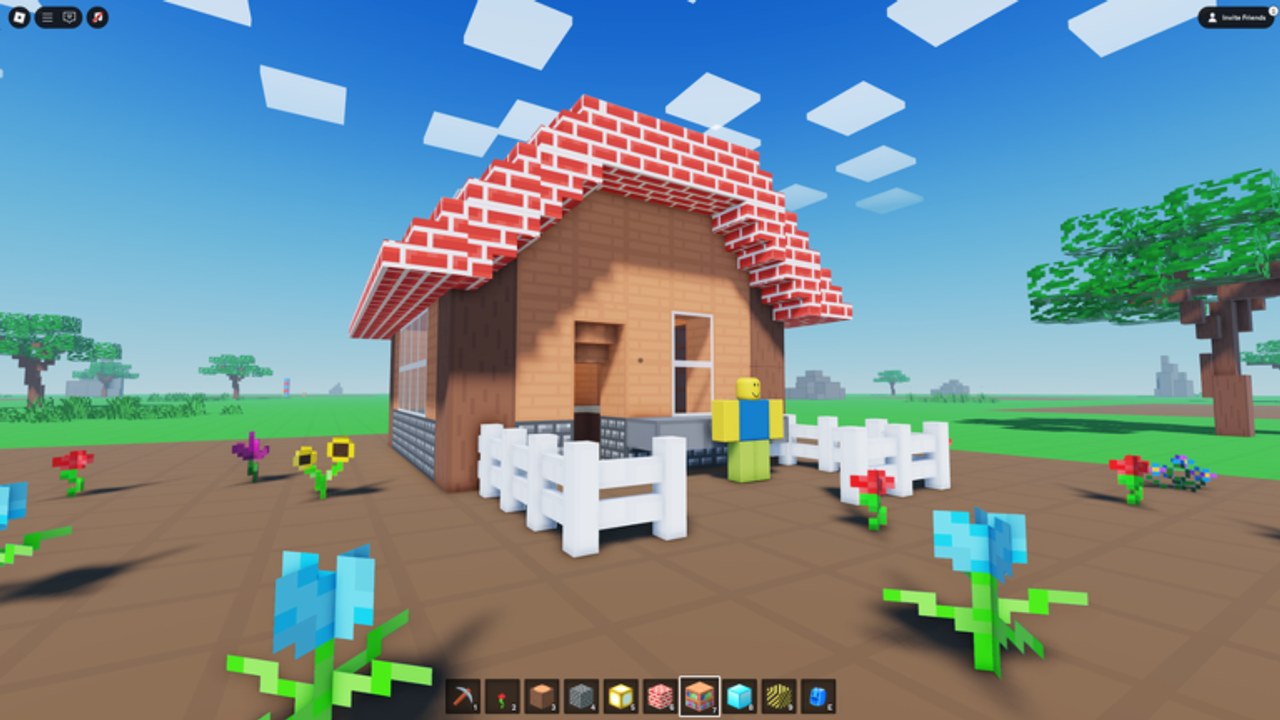
Clear controls turn Build with Blocks from a confusing lobby into a creative tool. The experience supports the standard Roblox movement stack plus inventory selection, click/tap placement, and pickaxe mining. This page maps those actions for PC and mobile so you stop losing the active block mid-build.
Core actions
| Action | What it does |
|---|---|
| Move | Standard Roblox WASD / thumbstick locomotion |
| Jump | Clear low walls while scouting your plot |
| Camera | Orbit to see placement faces before clicking |
| Open Inventory | Reveal the block catalog |
| Select Block | Set the active placeable material |
| Place | Click (PC) or tap (mobile) a valid surface |
| Mine | Equip pickaxe and remove blocks |
| Menu / Settings | Codes, volume, and experience options |
Exact icon art can change after weekly Goober Labs patches, but the verbs stay stable because they match the official description.
PC controls deep dive
- Walk onto your plot using WASD and mouse look.
- Press the inventory control (backpack / hotbar UI) to open blocks.
- Left-click a block type to select it—watch for a highlight or equipped preview.
- Left-click the world to place. If the click walks your avatar instead, the block is not selected.
- Equip the pickaxe from the tool list, then click blocks you want removed.
- Use right-mouse drag or the Roblox camera keys to inspect corners before committing long walls.
Creators coming from Roblox Studio should remember there is no Studio-style Move/Scale gizmo here—only place and mine. See How to Build for layering strategy that compensates.
Mobile controls deep dive
- Use the dynamic thumbstick to reach your plot center.
- Tap the inventory icon, then tap a block tile.
- Tap the ground or wall face to place. Larger targets help—prefer chunky pillars on phones.
- Open tools, select the pickaxe, tap blocks to mine.
- Pinch or drag to adjust camera height so you are not placing from a top-down blind spot.
If taps feel ignored, rotate the device to landscape, close chat overlays, and reselect the block after any settings visit.
Camera habits that improve accuracy
- Place three blocks, then orbit 45 degrees before continuing a wall.
- Drop the camera to eye level when aligning door gaps.
- Raise the camera for roof symmetry checks.
- Avoid building while sprinting; stop, aim, place.
These habits matter more than keybind trivia on an 8-player plot server.
Troubleshooting input
Blocks will not place: reselect from inventory; confirm you are on your plot; rejoin if the plot failed to load (Getting Started).
Pickaxe does nothing: equip it explicitly; some sessions leave you in place-mode after mining once—re-tap the tool.
UI covered by ads or notches: use Roblox’s full-screen options or a different device orientation.
Controller users: Roblox maps movement to the stick; placement still depends on the on-screen inventory selection—open the GUI with the designated button for your platform.
Accessibility tips
Increase Roblox camera sensitivity if orbiting feels slow. Use higher graphics only if it does not tank touch responsiveness. Colorblind builders should lean on silhouette and height variation—see Building Tips—instead of red/green-only accents.
Practice routine
Spend five minutes on controls alone: select wood, place a line of ten, mine five, reselect stone, place a second line. That micro-drill prevents mid-castle confusion. Then continue into How to Mine or redeem anything on Codes before a longer session.
When weekly updates add new tools or door widgets, we will extend this chart. Until then, inventory → select → place → pickaxe remains the entire control fantasy—and that simplicity is why Build with Blocks feels welcoming.
Frequently Asked Questions
Quick answers for Build with Blocks players.
Is there a unique keybind just for this game?
Movement uses standard Roblox controls. The unique verbs are inventory select, click/tap place, and pickaxe mine.
Can I remapping controls inside Build with Blocks?
Use Roblox's global settings for movement and camera. Experience-specific GUIs follow the on-screen buttons.
Why does mobile placement feel imprecise?
Tap targets are smaller on phones. Build thicker forms and adjust camera height before each tap.
Where should I go after learning controls?
Follow How to Build and keep Getting Started handy for session goals.